 Stock
StockRun an invite-only drop
Make a release invite-only: choose who's eligible, invite them, go live, then open it to everyone.
Prefer to watch? Play the video guide: Invite-only drops
Create a drop
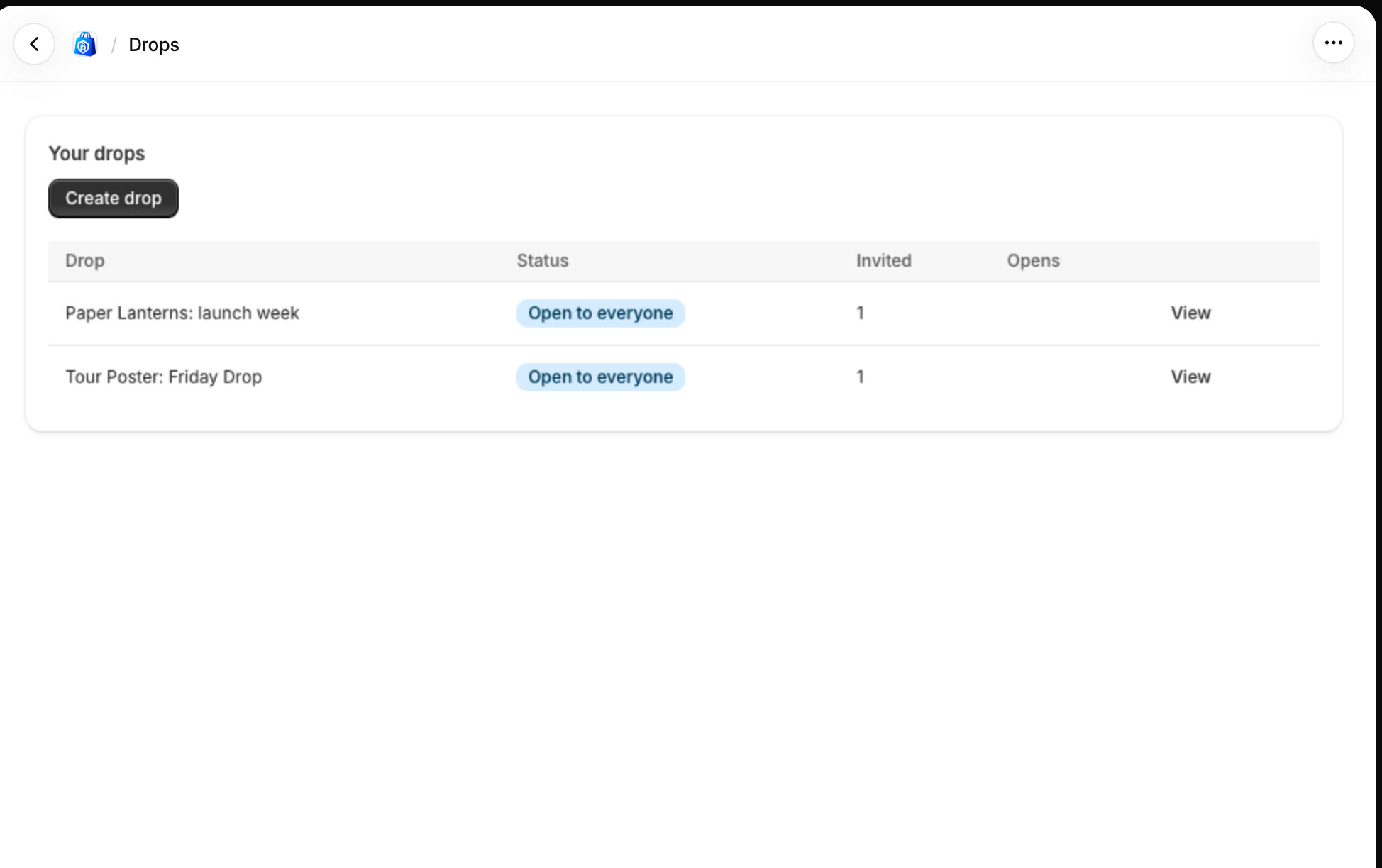
In StockLock, open Drops and click Create drop.
Name it and choose what's in it
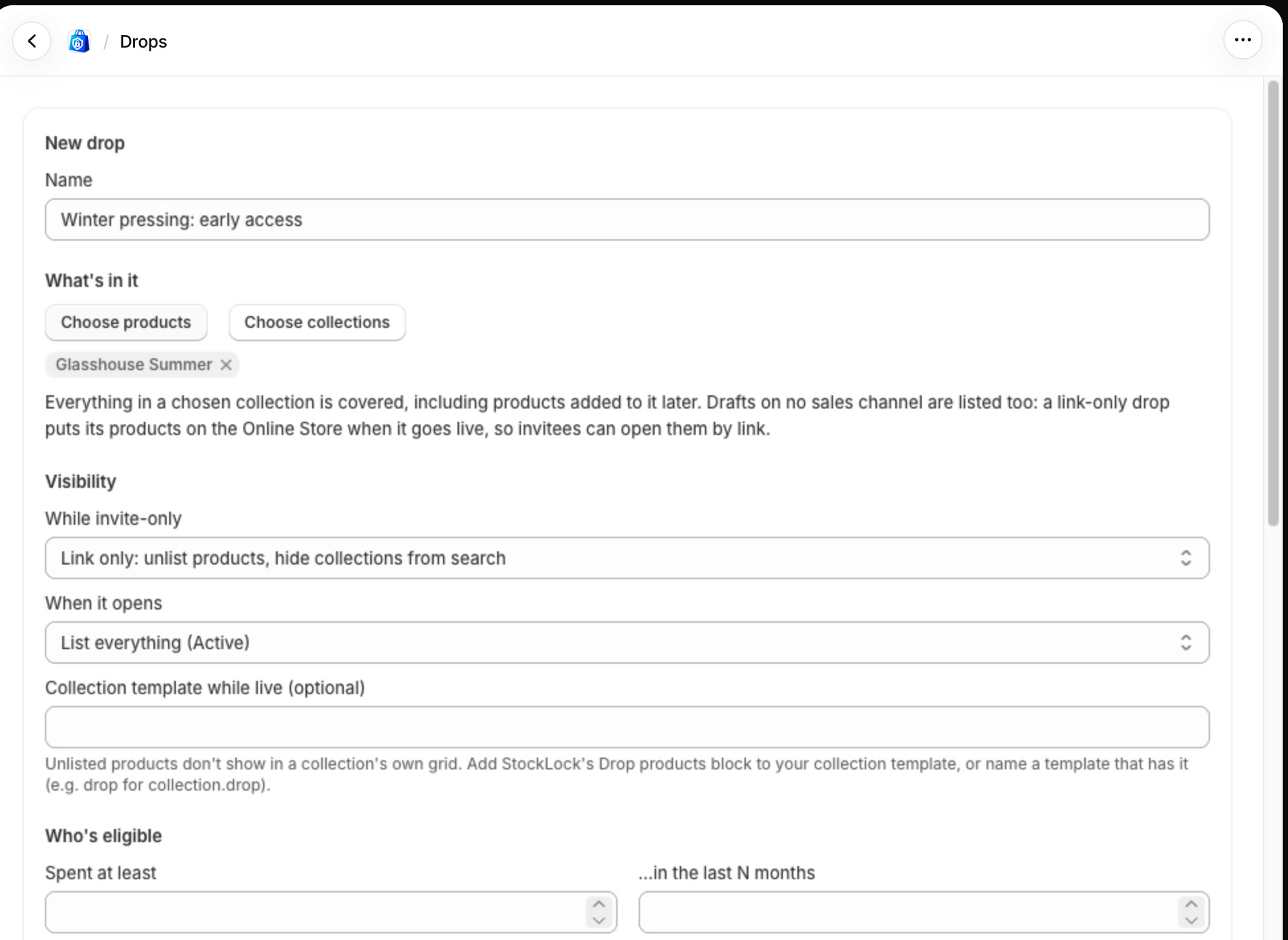
Give the drop a name, then click Choose products or Choose collections. Draft products can be included: going live puts them on your store, unlisted.
Choose who's eligible
Set who can be invited: by spend, number of orders, tags or past purchases. Click Count eligible customers to see how many match.
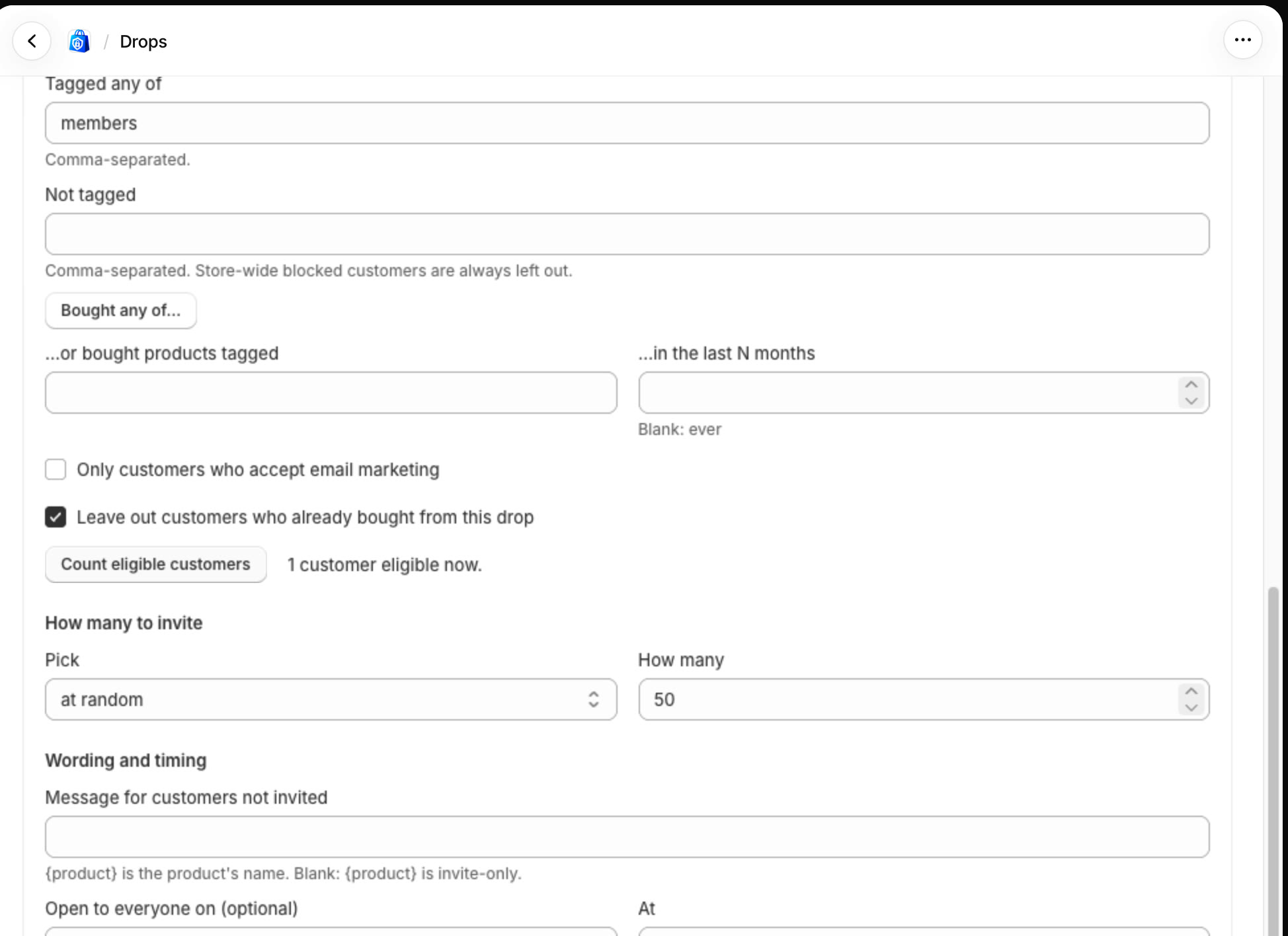
Untick Only customers who accept email marketing if you'll invite customers some other way.
Choose how many to invite, and save
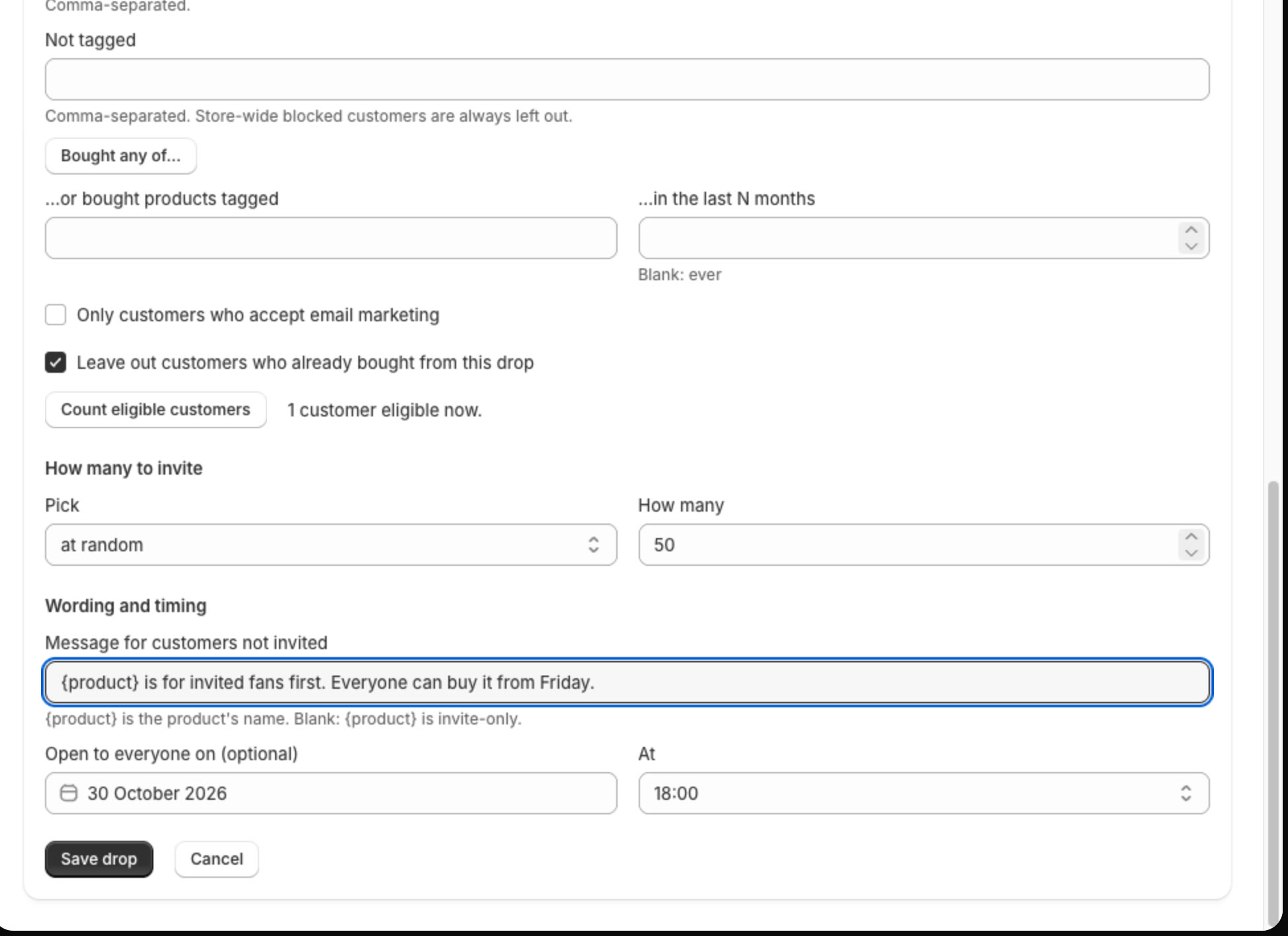
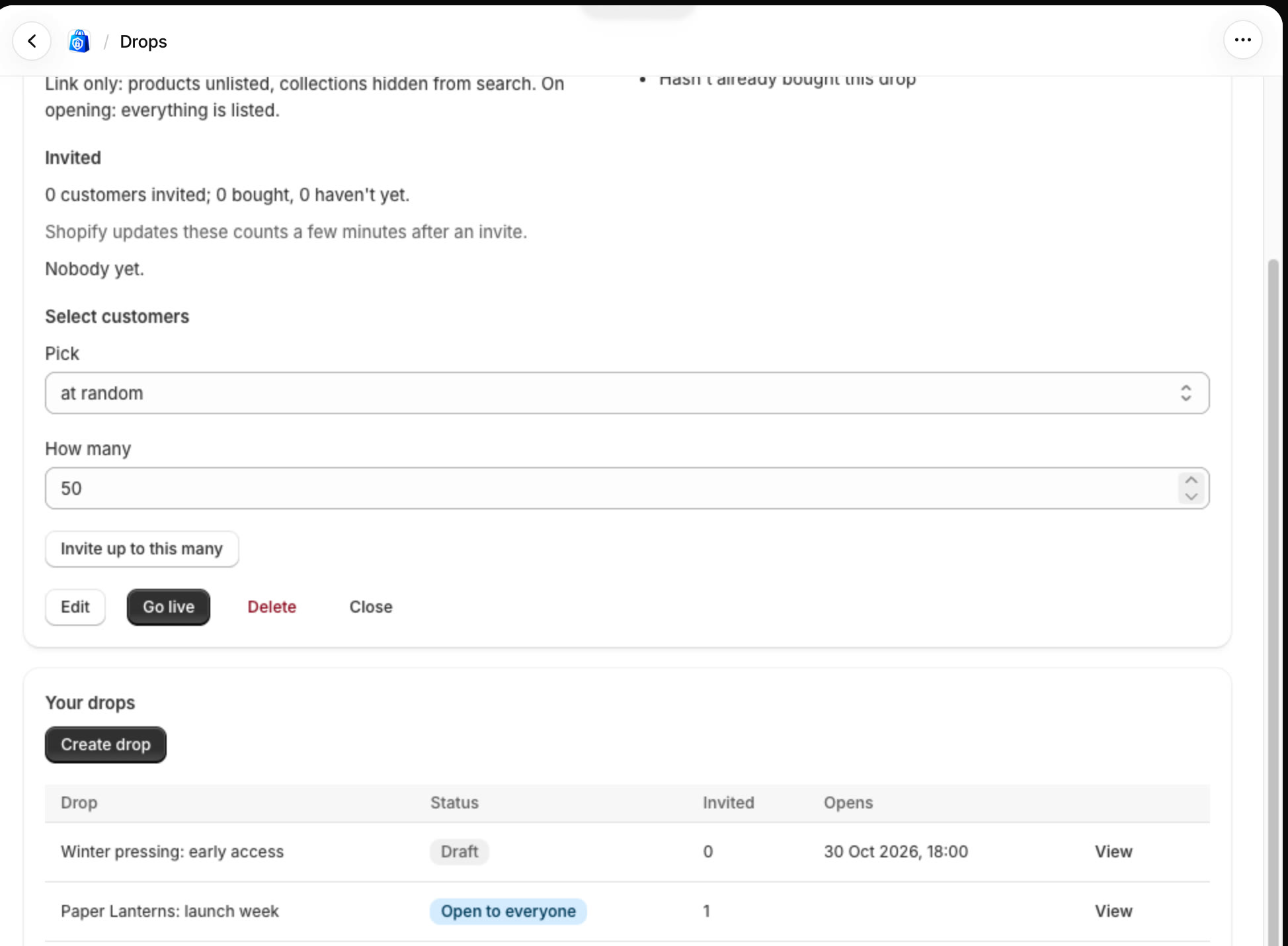
Choose how to pick (at random or by rank) and how many. Write the message for customers who aren't invited, then click Save drop.
Invite customers, then go live
On the drop, click Invite up to this many, then Go live. Invited customers get the drop's tag and a customer segment you can email.
Open it to everyone
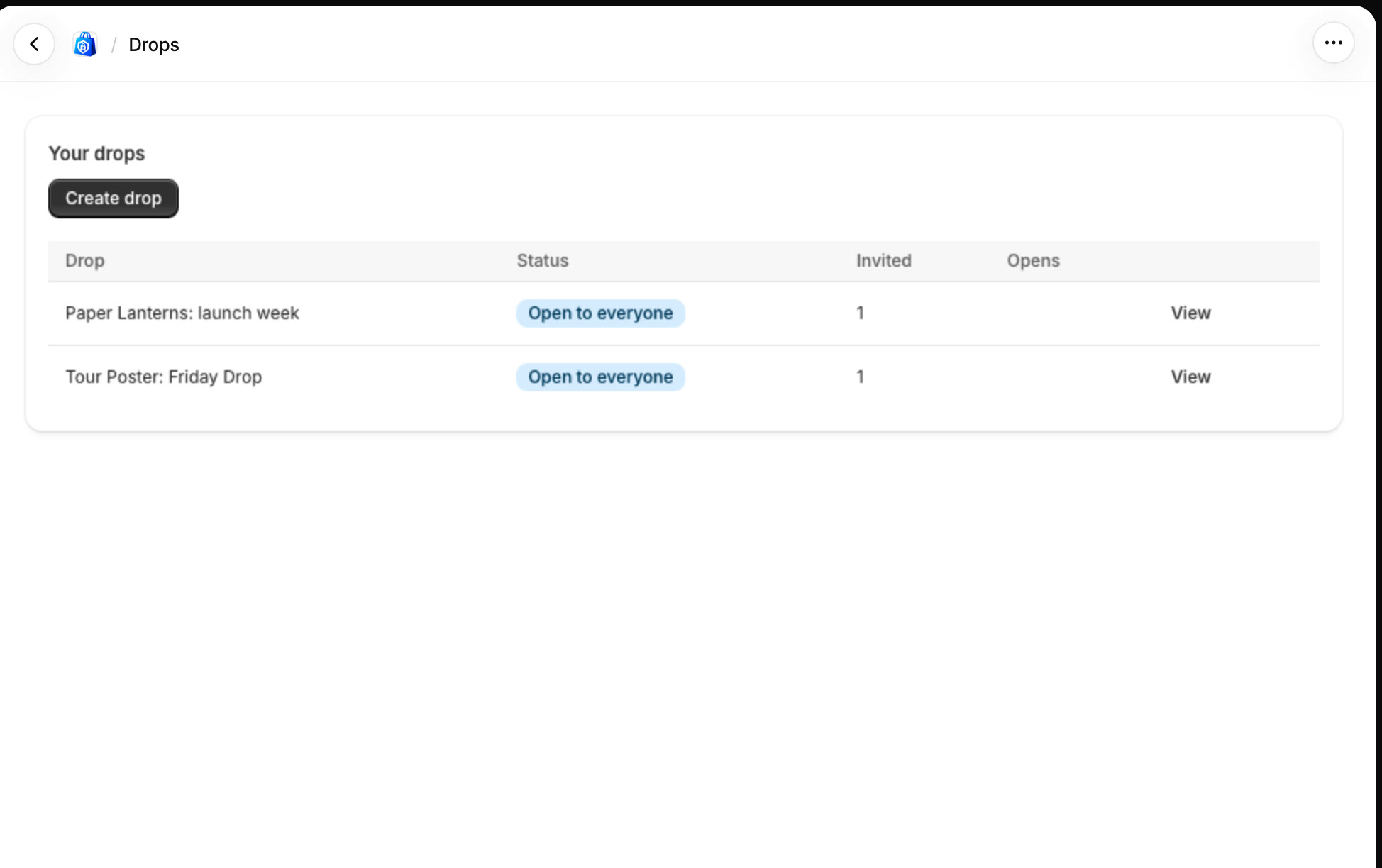
When you're ready, click Open to everyone on the drop. Its products are listed again and anyone can buy.
All done
That's everything for this guide. Need a hand? Email support@stocklock.net.