 Stock
StockChange how the limit note looks
Match the note to your theme automatically, copy the look of something on the page, or style it yourself.
Prefer to watch? Play the video guide: Change the wording and the note's style
Open StockLock in the theme editor
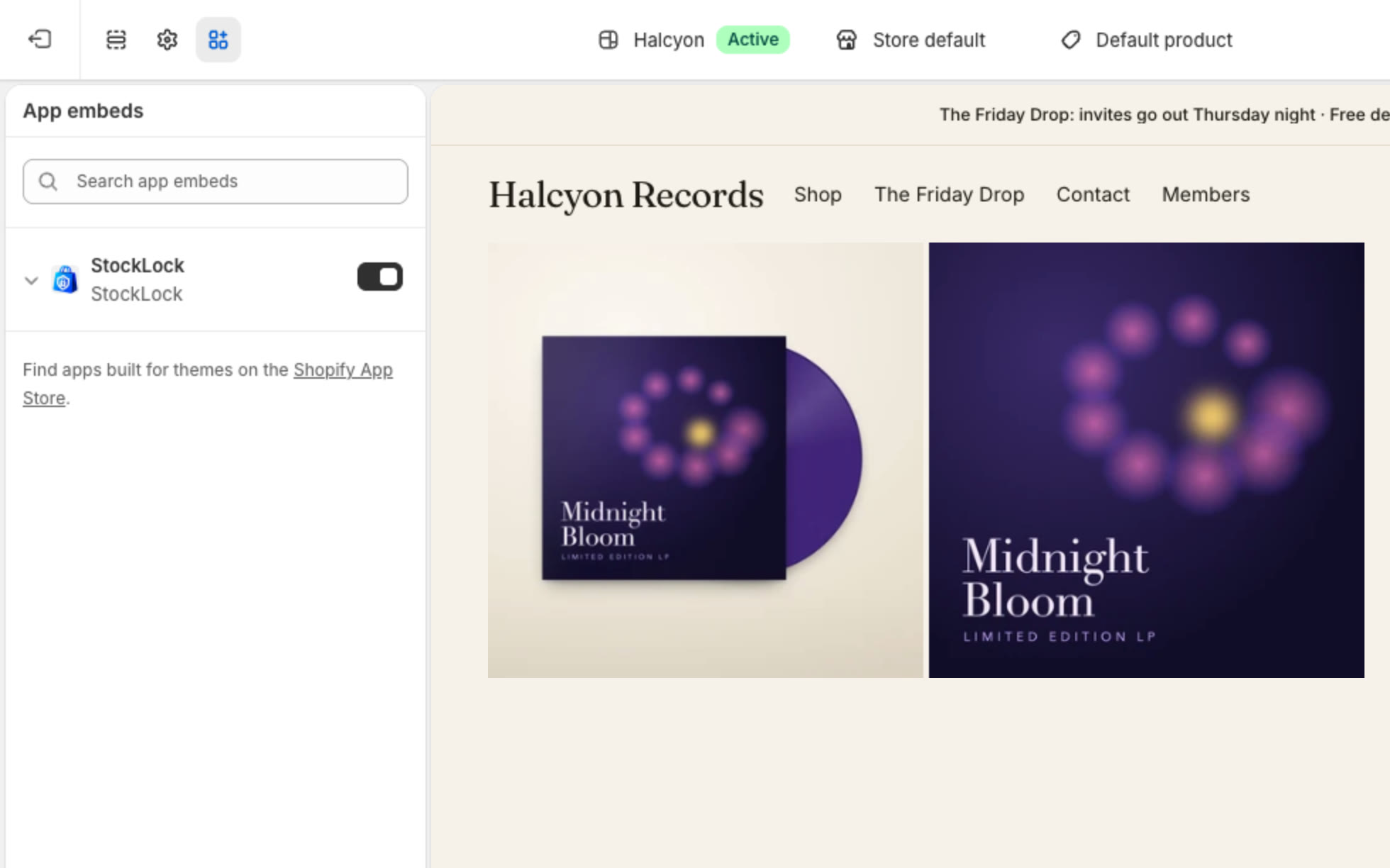
In your Shopify admin, open Online Store, then Themes, and click Customize. Click the App embeds icon in the left bar, then click StockLock to show its settings.
Pick a style
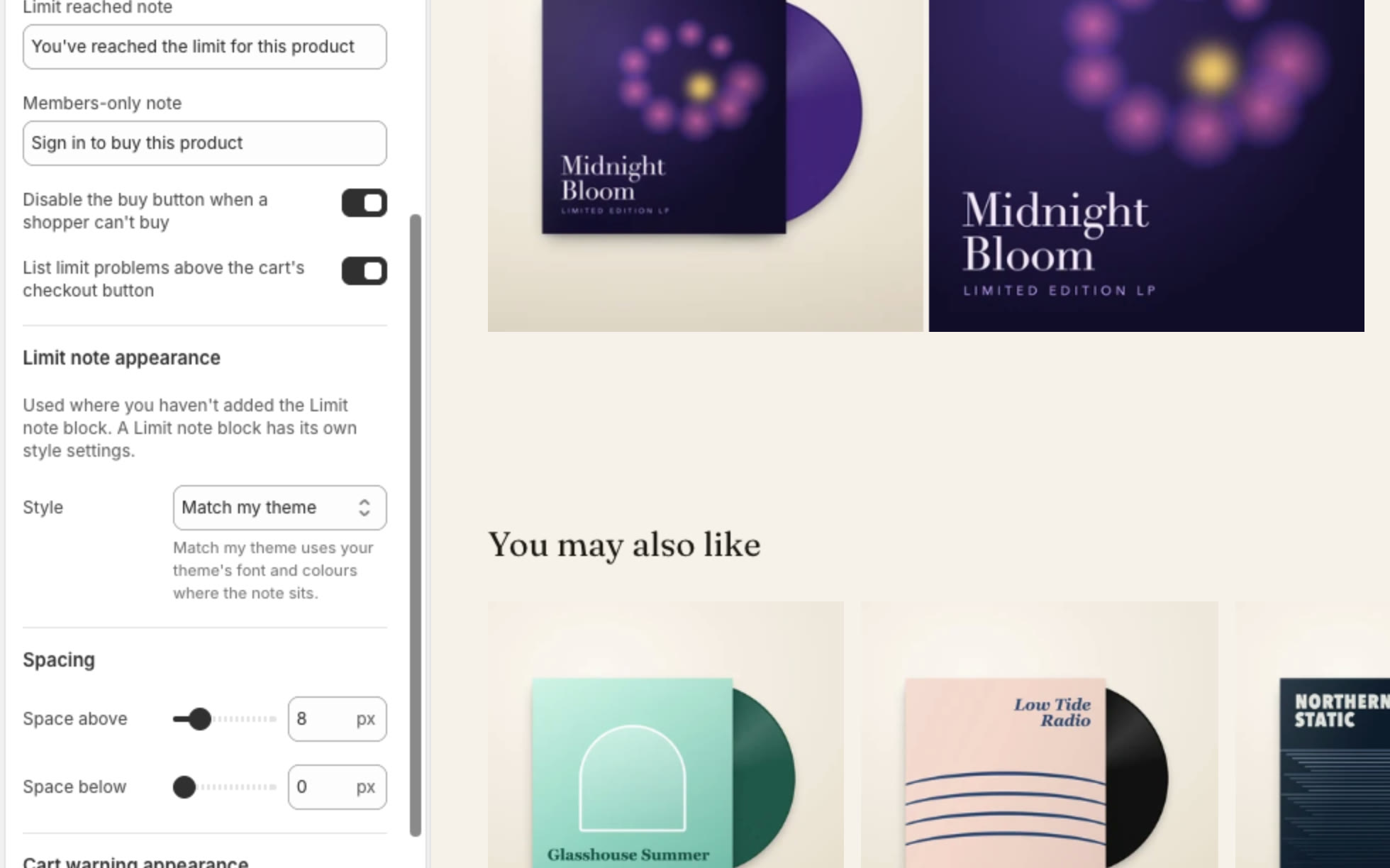
Scroll to Limit note appearance and choose a Style: Match my theme (the default), Look like something on the page (such as the price or a sale badge), or My own style.
Fine-tune it and save
With My own style, set the font, size, colour, an icon and a background box. The preview updates as you go. Click Save.
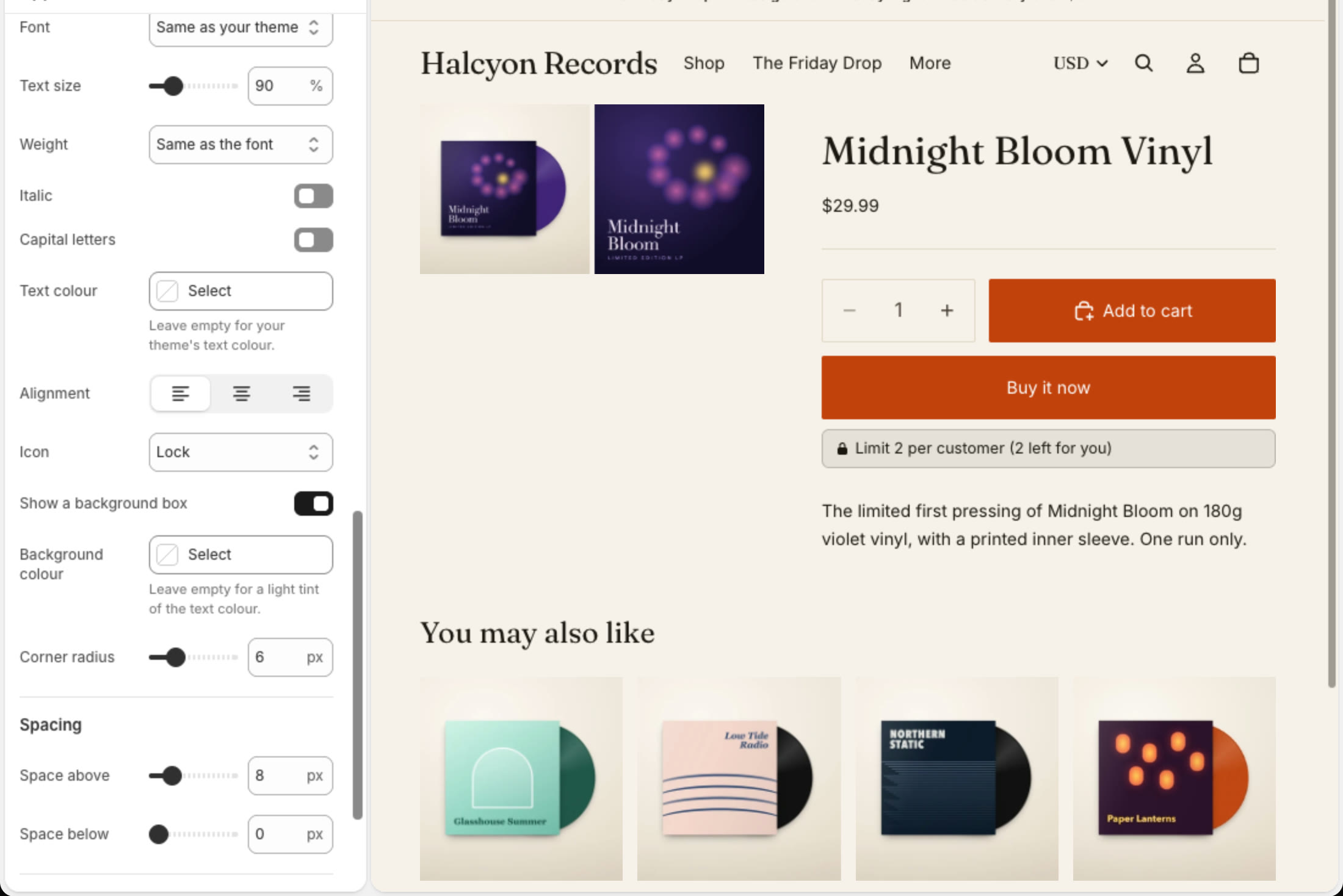
Placed the Limit note block? Select the block instead: it has its own style settings. Cart warning appearance, further down, styles the cart's warning box.
All done
That's everything for this guide. Need a hand? Email support@stocklock.net.