 Stock
StockChange the messages customers see
Reword the cart and checkout messages in StockLock, and the product page notes in your theme editor.
Prefer to watch? Play the video guide: Change the wording and the note's style
Open the wording in Settings
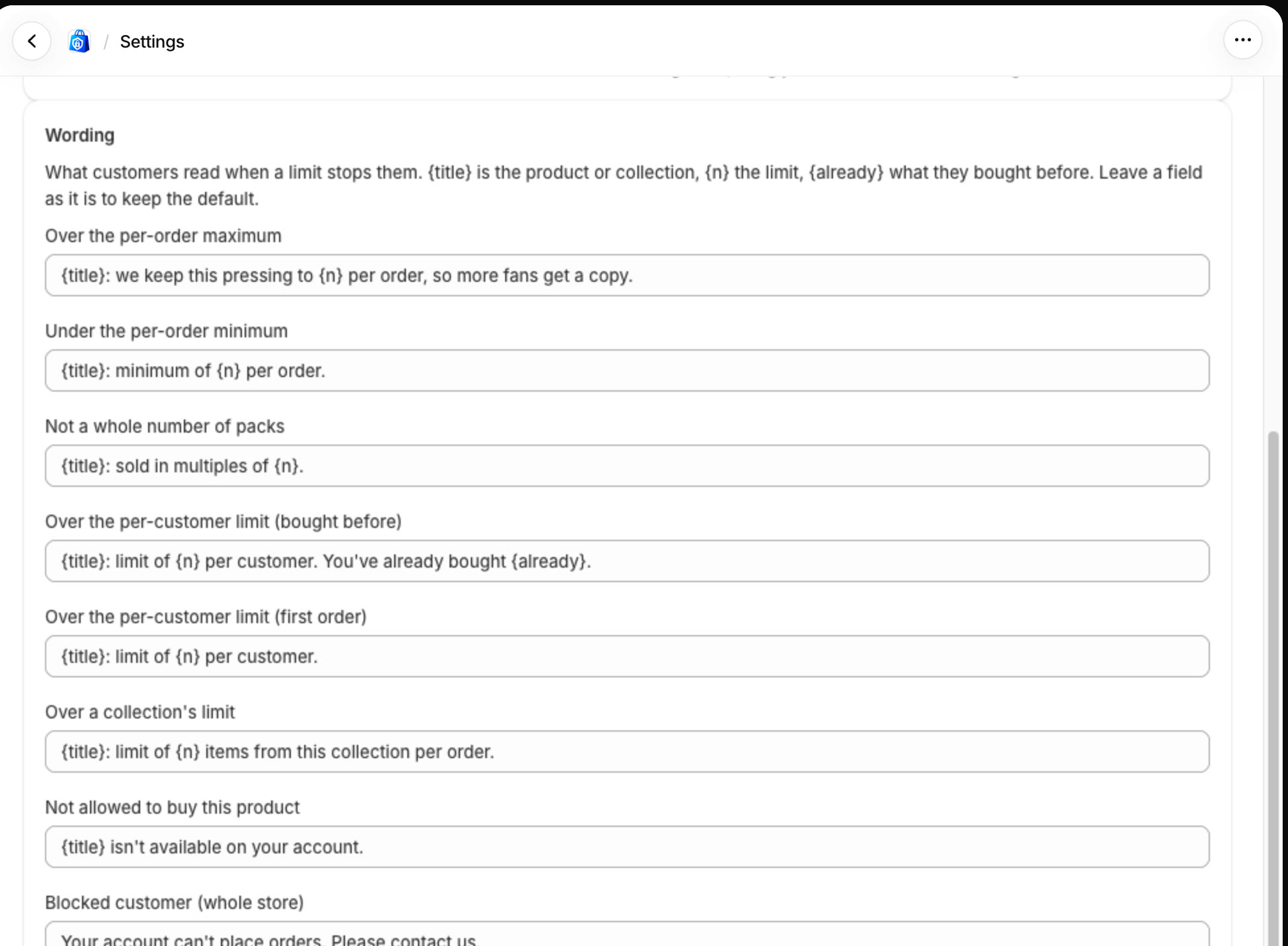
In StockLock, open Settings and scroll to Wording. Each box is one message. Here, Over the per-order maximum has been reworded for a record shop.
Write your own and save
Type your own wording in any box, then click Save settings at the bottom. Use {title} for the product or collection, {n} for the limit, and {already} for what the customer bought before.
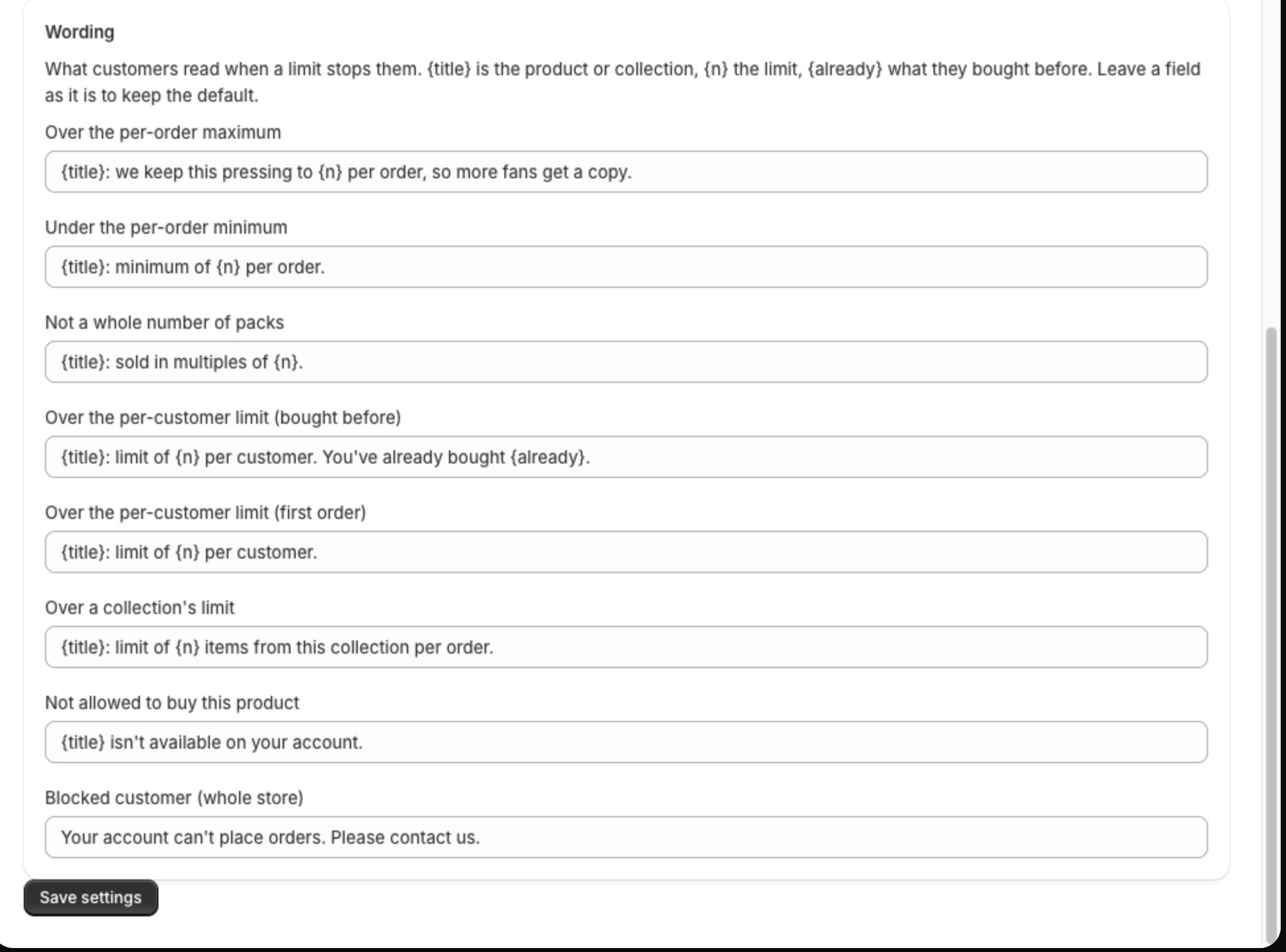
Leave a box as it is to keep StockLock's standard wording.
See it in the cart
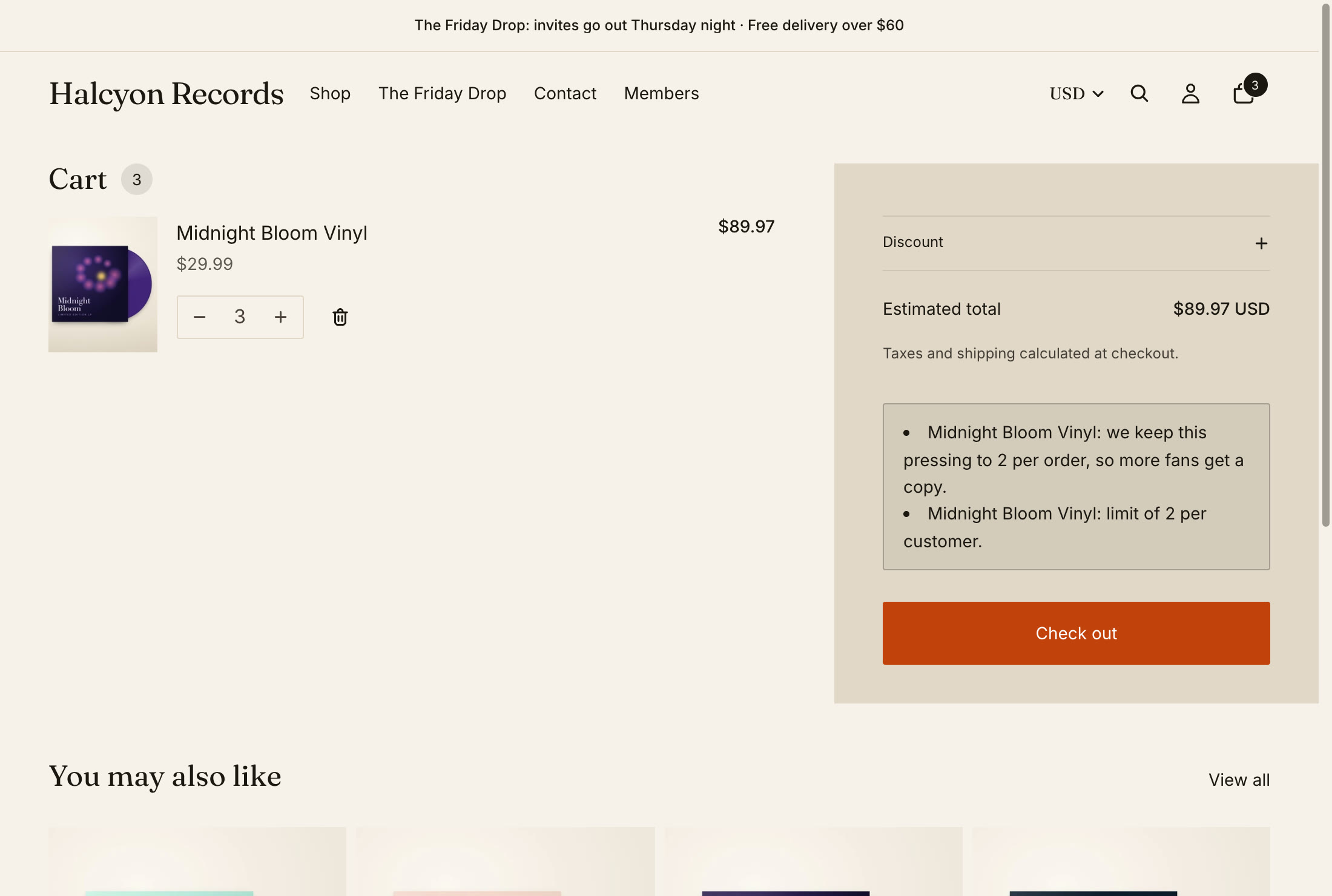
Your wording shows in the cart straight away, wherever a limit stops the shopper.
And at checkout
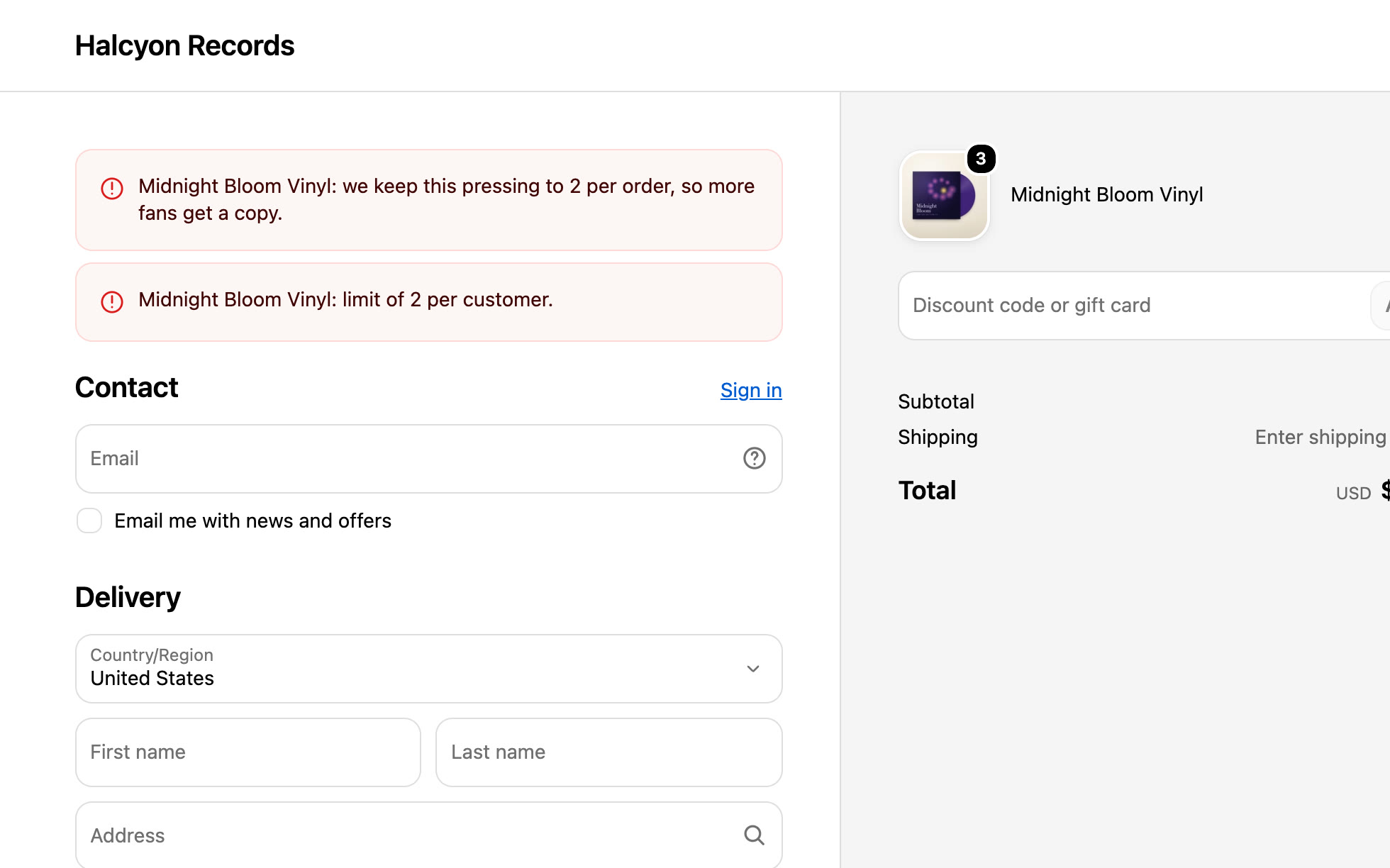
Checkout uses the same wording when it refuses an order.
Reword the product page notes
The notes on product pages are set in your theme editor. Open App embeds, click StockLock, and change Limit note, Per-customer note, Collection limit note and the others. Click Save.
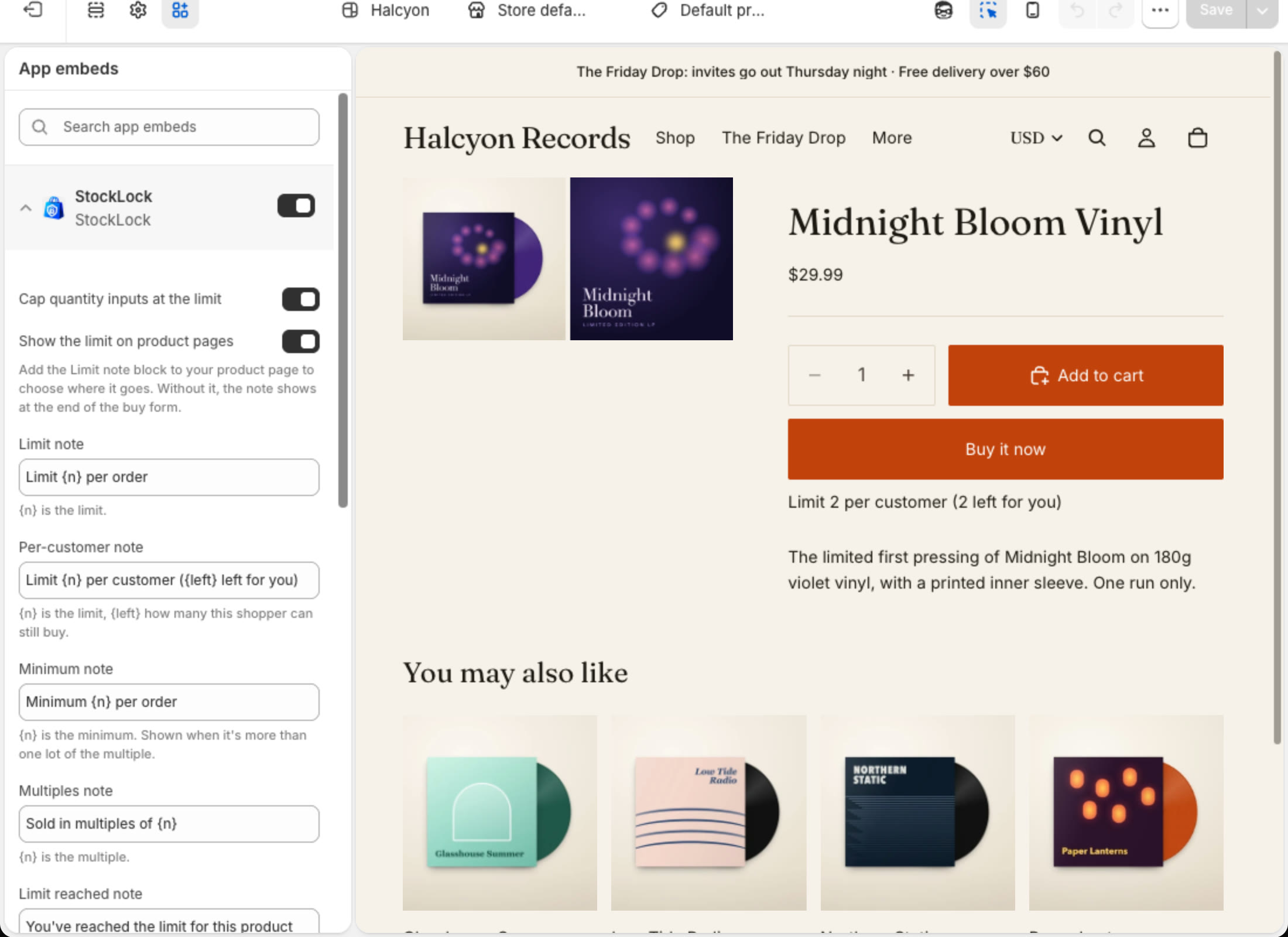
{n} is the limit and {left} how many this shopper can still buy. In the collection note, {collection} is the collection's name.
All done
That's everything for this guide. Need a hand? Email support@stocklock.net.