 Stock
StockLimit how many a customer can buy
Cap how many of a product one order can hold, and how many each customer can buy across all their orders.
Prefer to watch? Play the video guide: Set limits on a product
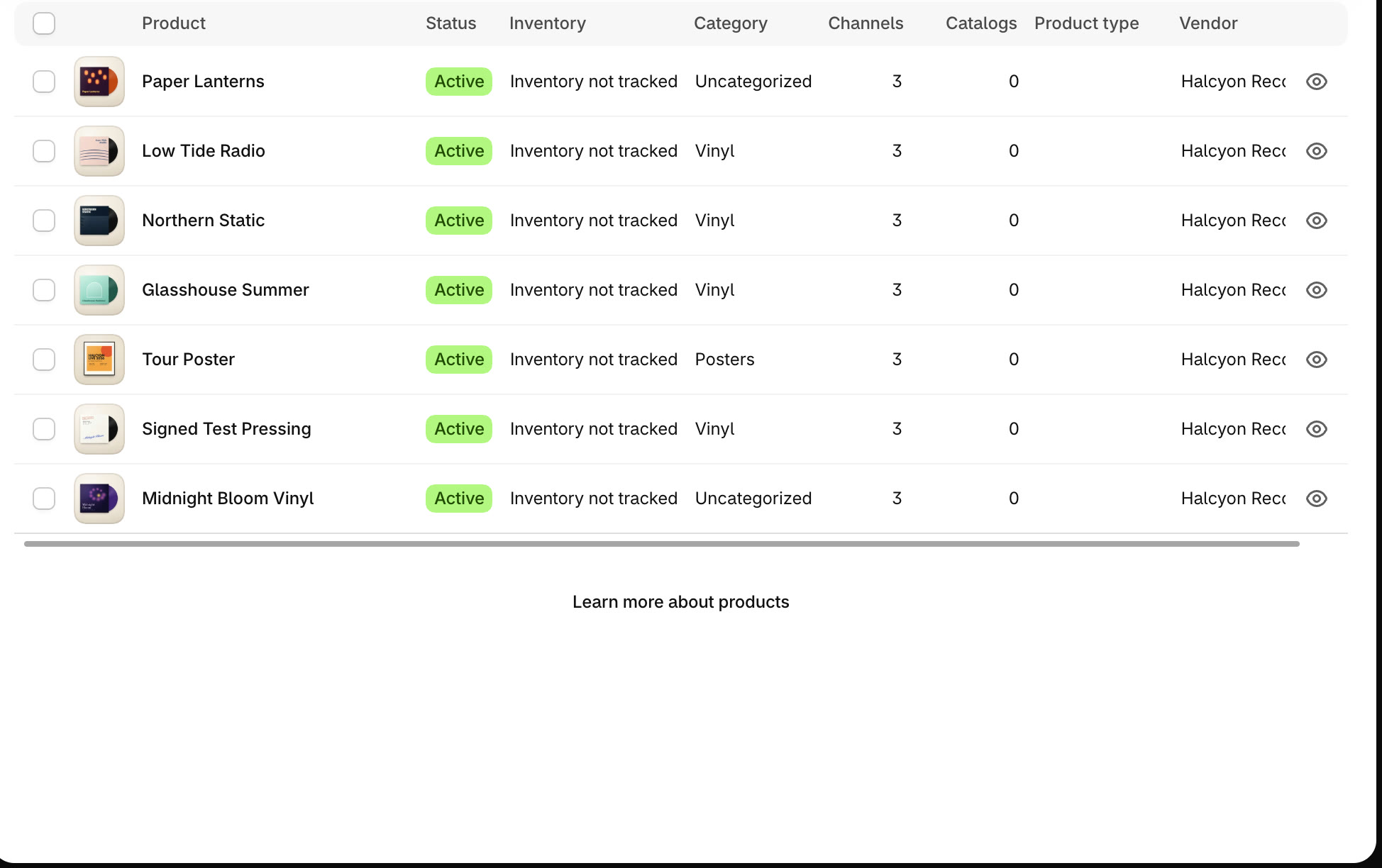
Open the product
In your Shopify admin, go to Products and open the product you want to limit.
Add the Order limits card
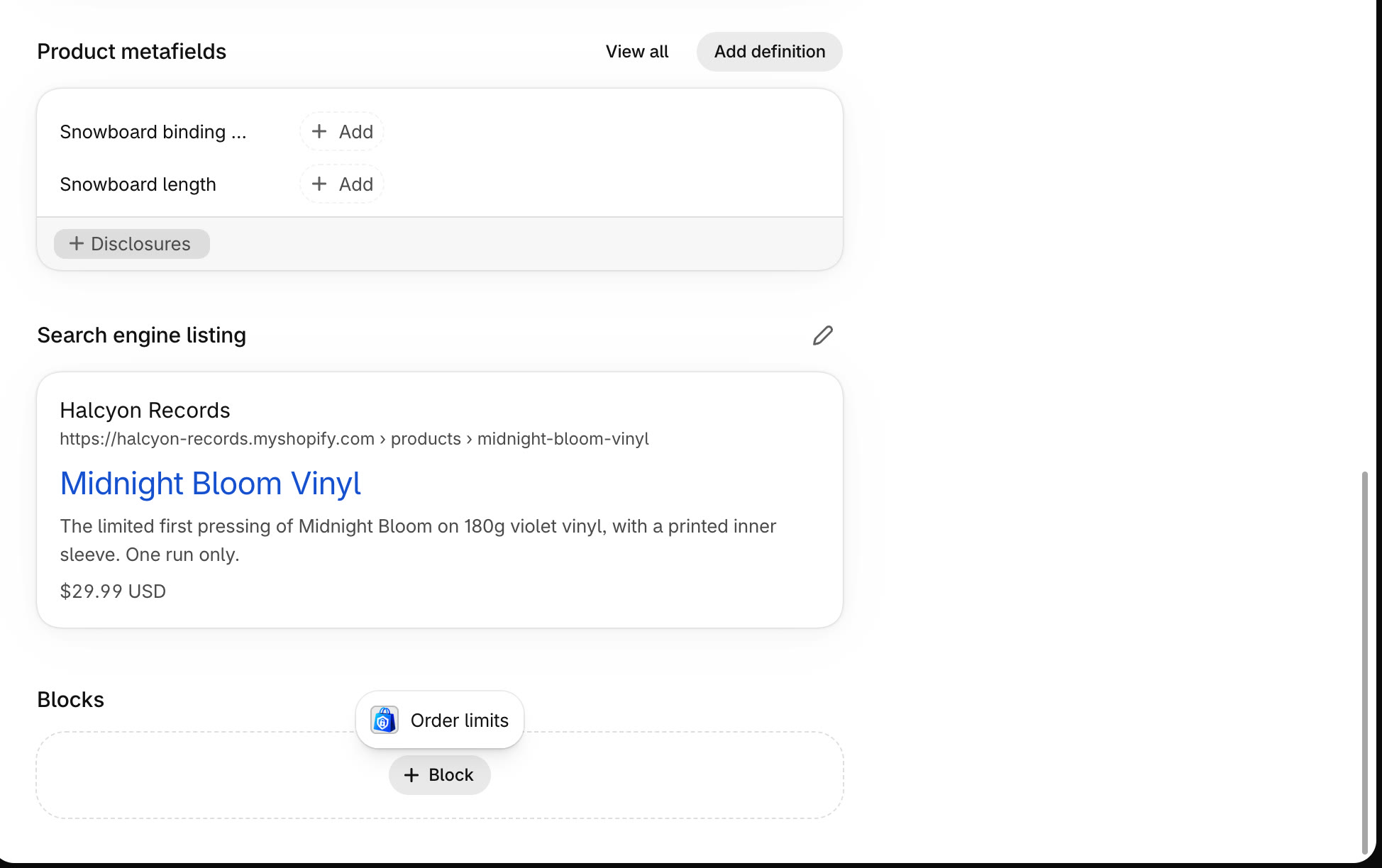
Scroll to the bottom of the product page. Under Blocks, click + Block and choose Order limits.
Already added? The Order limits card shows the product's current limits, ready to change.
Set your limits and save
Enter Max per order for the most one order can hold, and Per customer for the most one customer can buy across all their orders. Click Save limits.
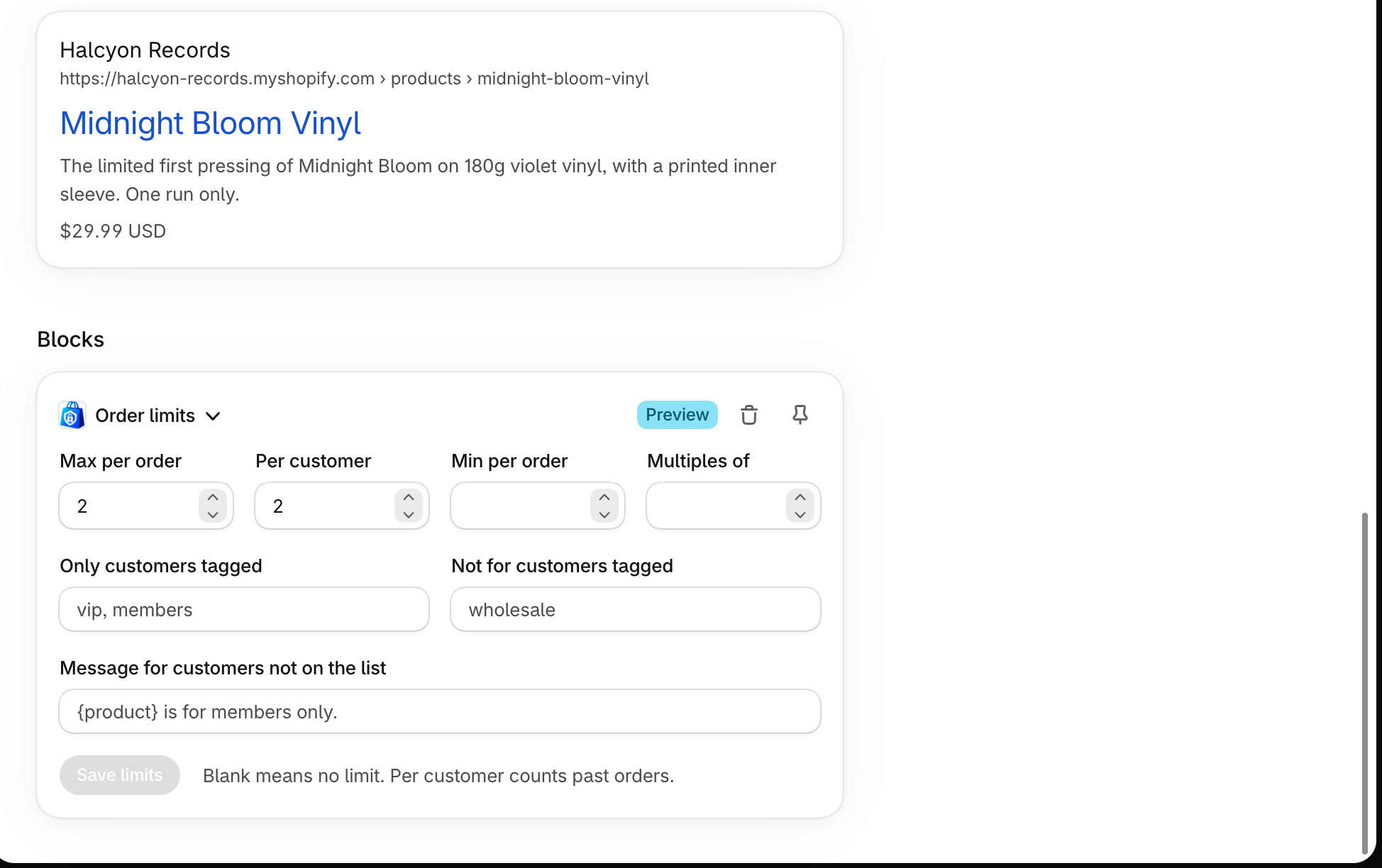
Leave a box blank for no limit. Per-customer limits count from when you install StockLock; you can recount the last 60 days on the Plan page.
Check your product page
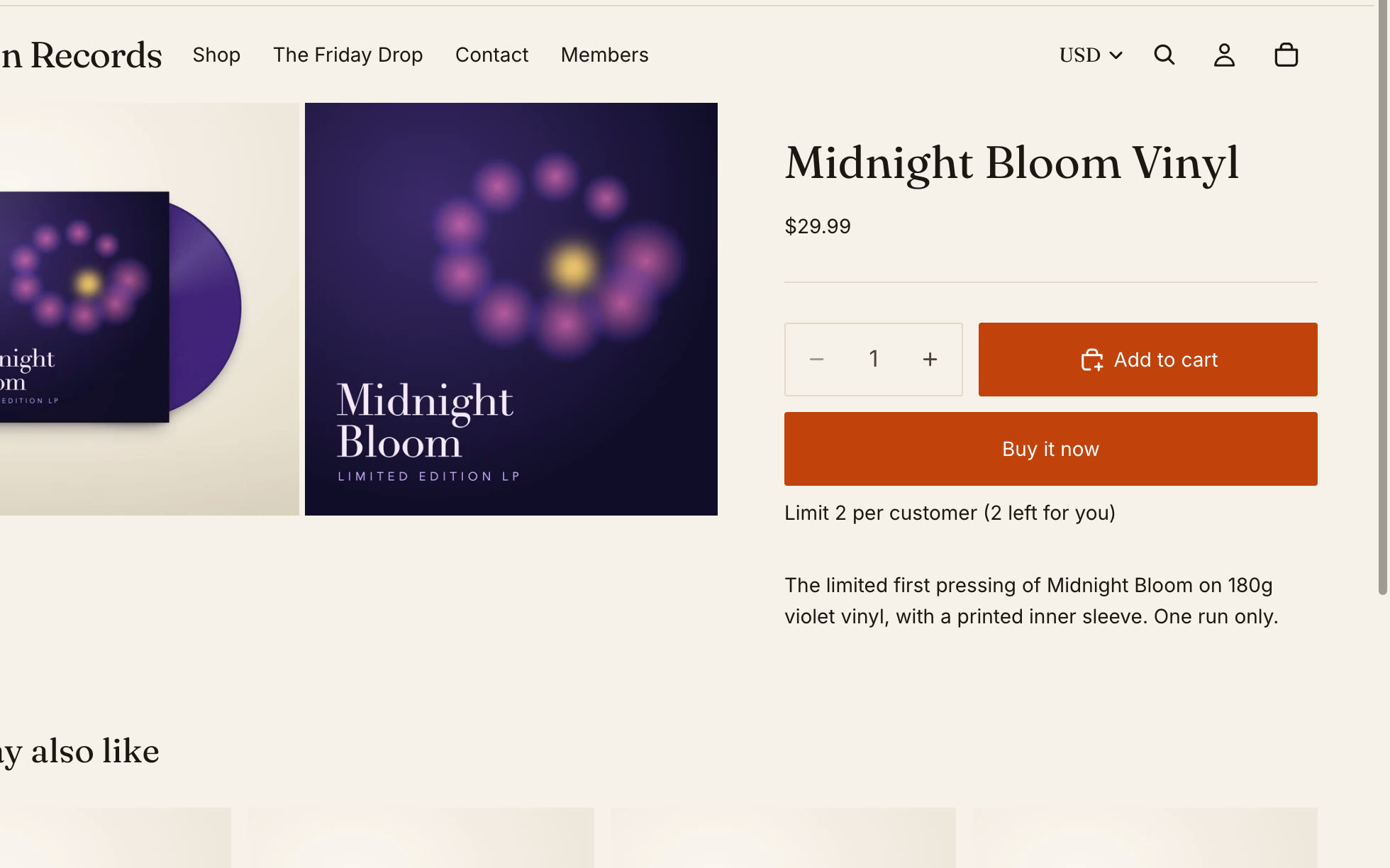
On your store, the quantity box stops at the limit, and a note tells shoppers how many they can buy.
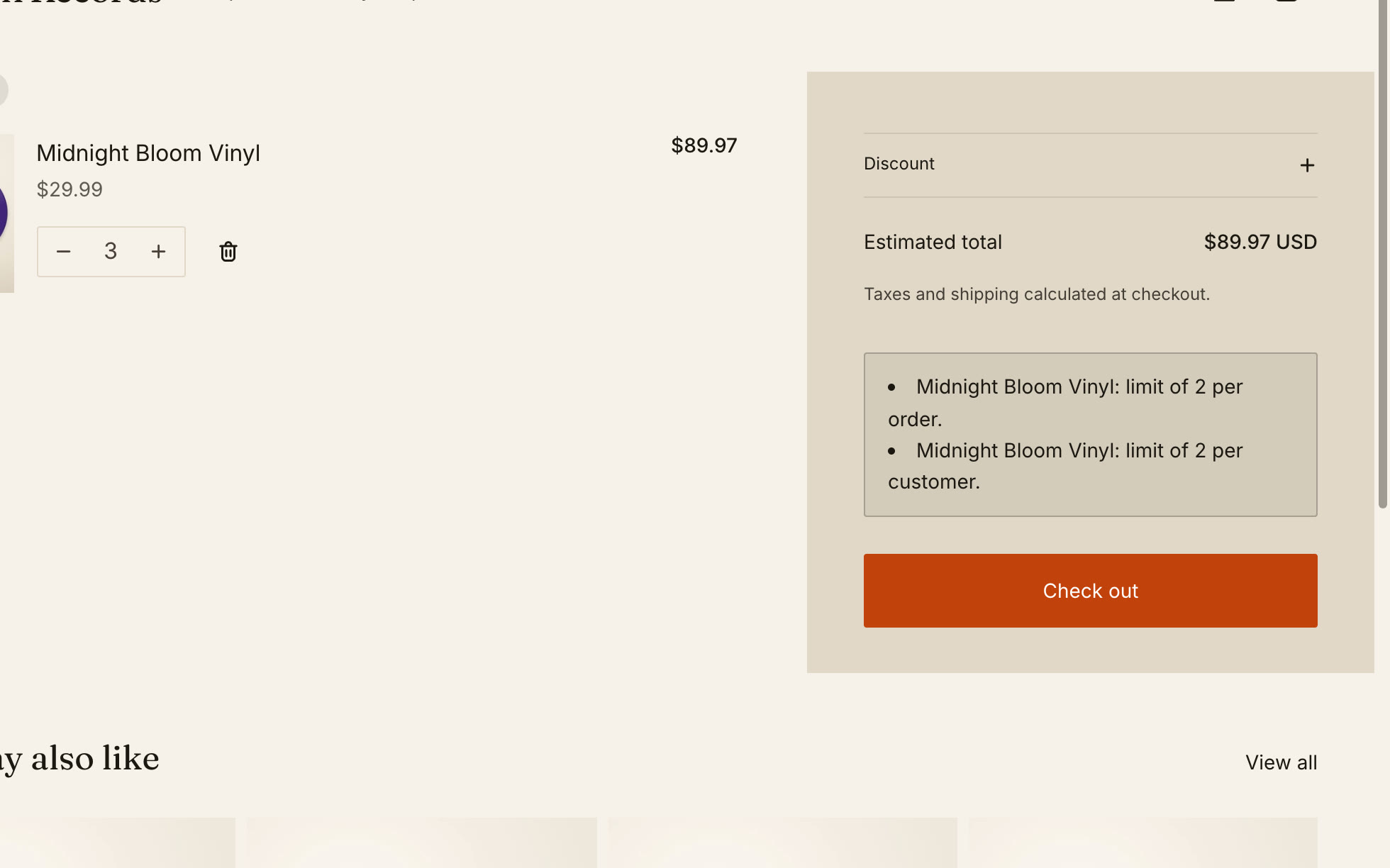
Over the limit in the cart
If a cart goes over the limit, StockLock lists what to change above the checkout button.
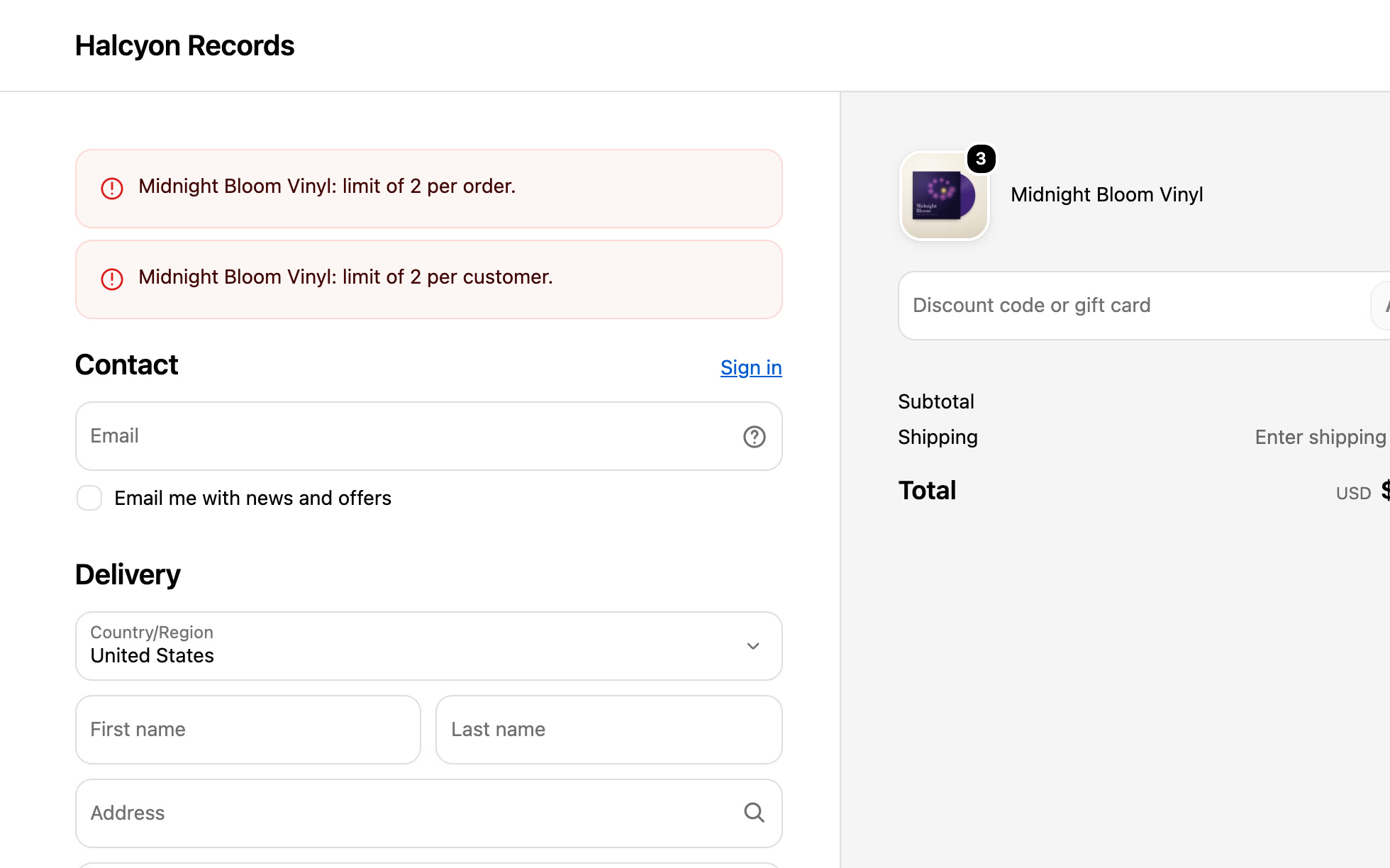
Checkout refuses the order
Checkout won't complete until the order is within your limits. This works in every checkout, including Shop Pay, Apple Pay and Google Pay.
All done
That's everything for this guide. Need a hand? Email support@stocklock.net.