 Stock
StockLimit a whole collection
Cap how many items one order can hold from a collection, all its products together. Ideal for new releases and drops.
Prefer to watch? Play the video guide: Collection limits
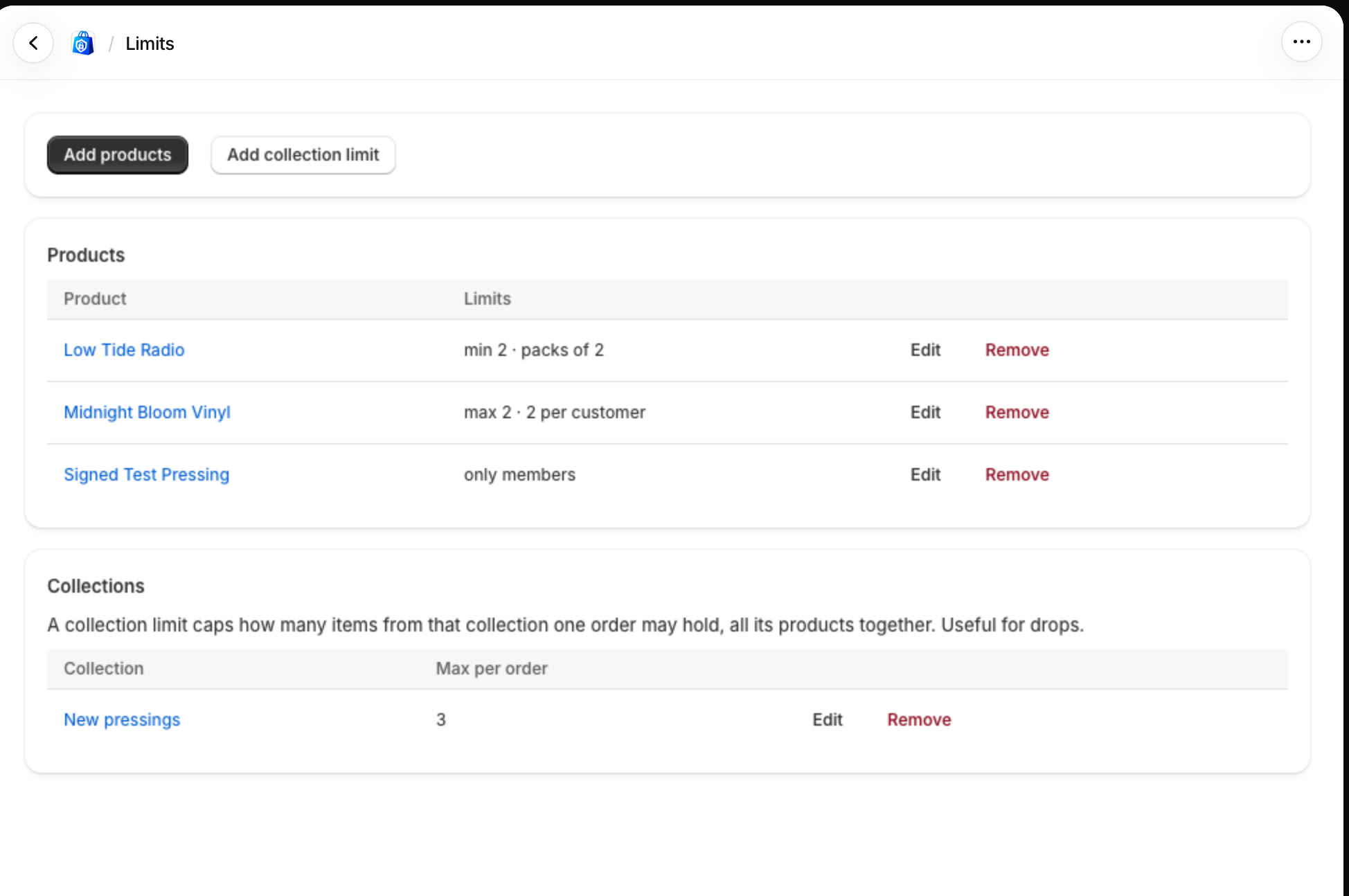
Click Add collection limit
In StockLock, open Limits and click Add collection limit.
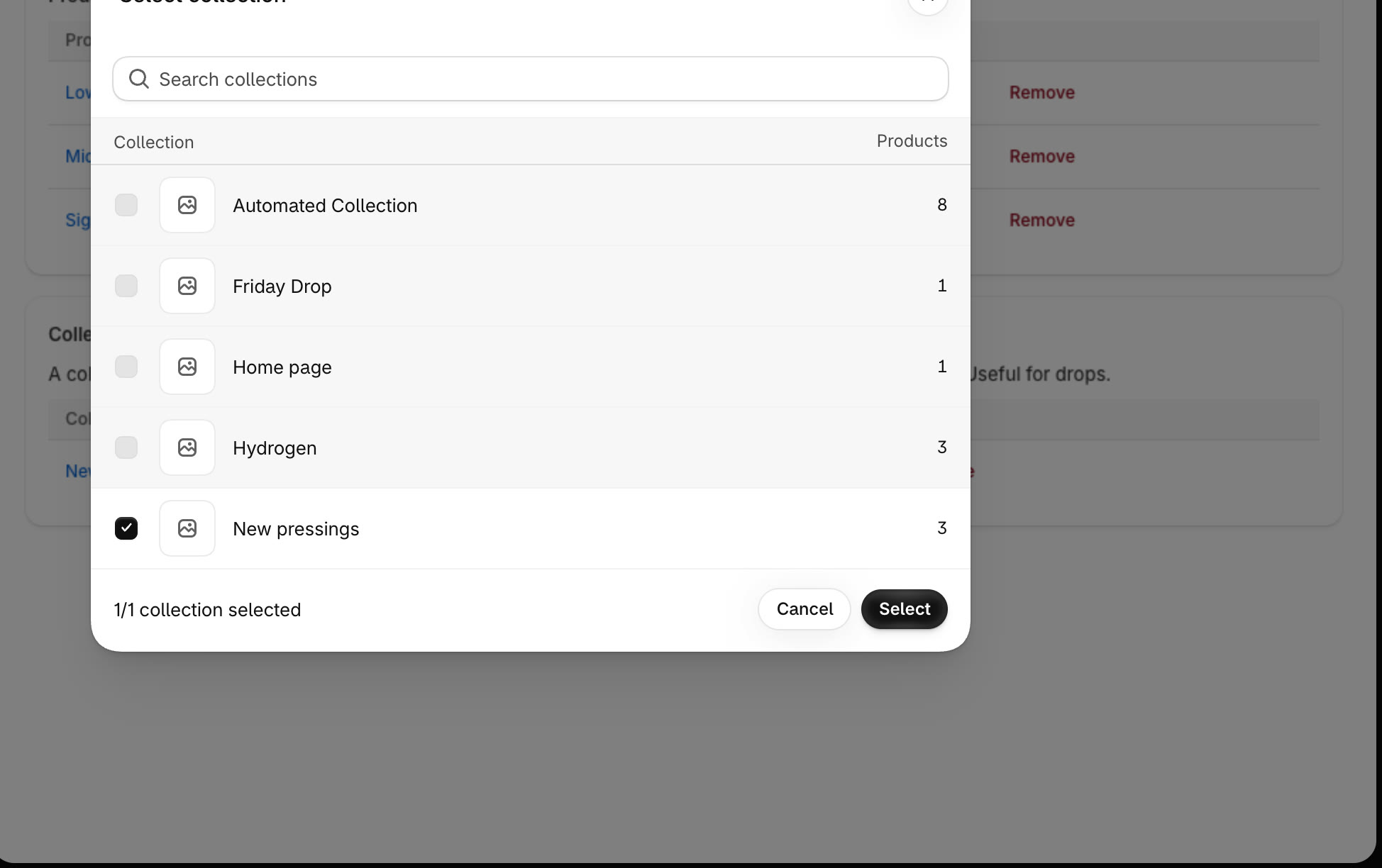
Choose the collection
Find the collection, select it and click Select.
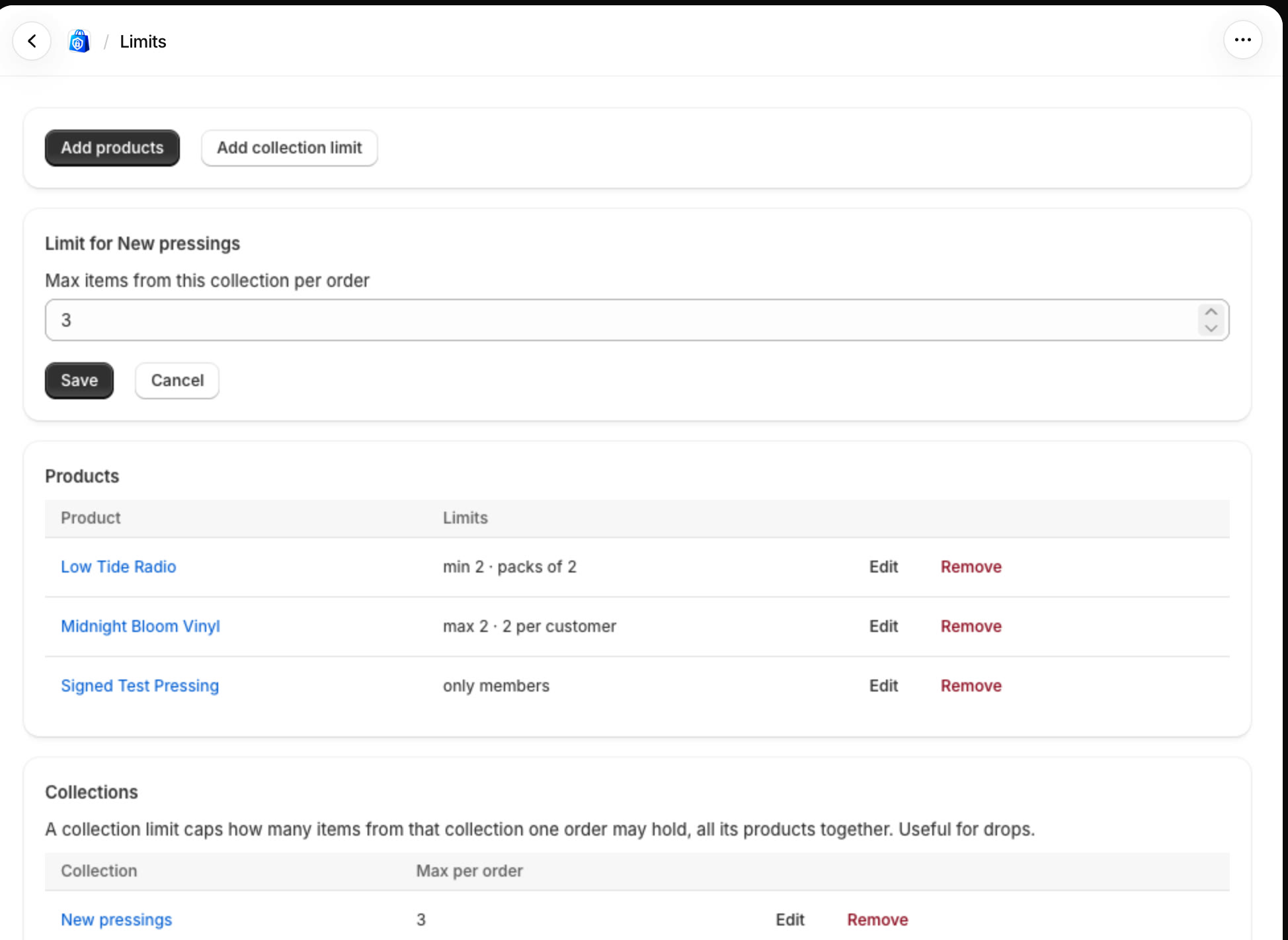
Set the limit and save
Enter Max items from this collection per order and click Save. The collection is listed under Collections on the Limits page; click Edit there to change it.
Every product in the collection counts, including products you add to it later.
Each product shows the limit
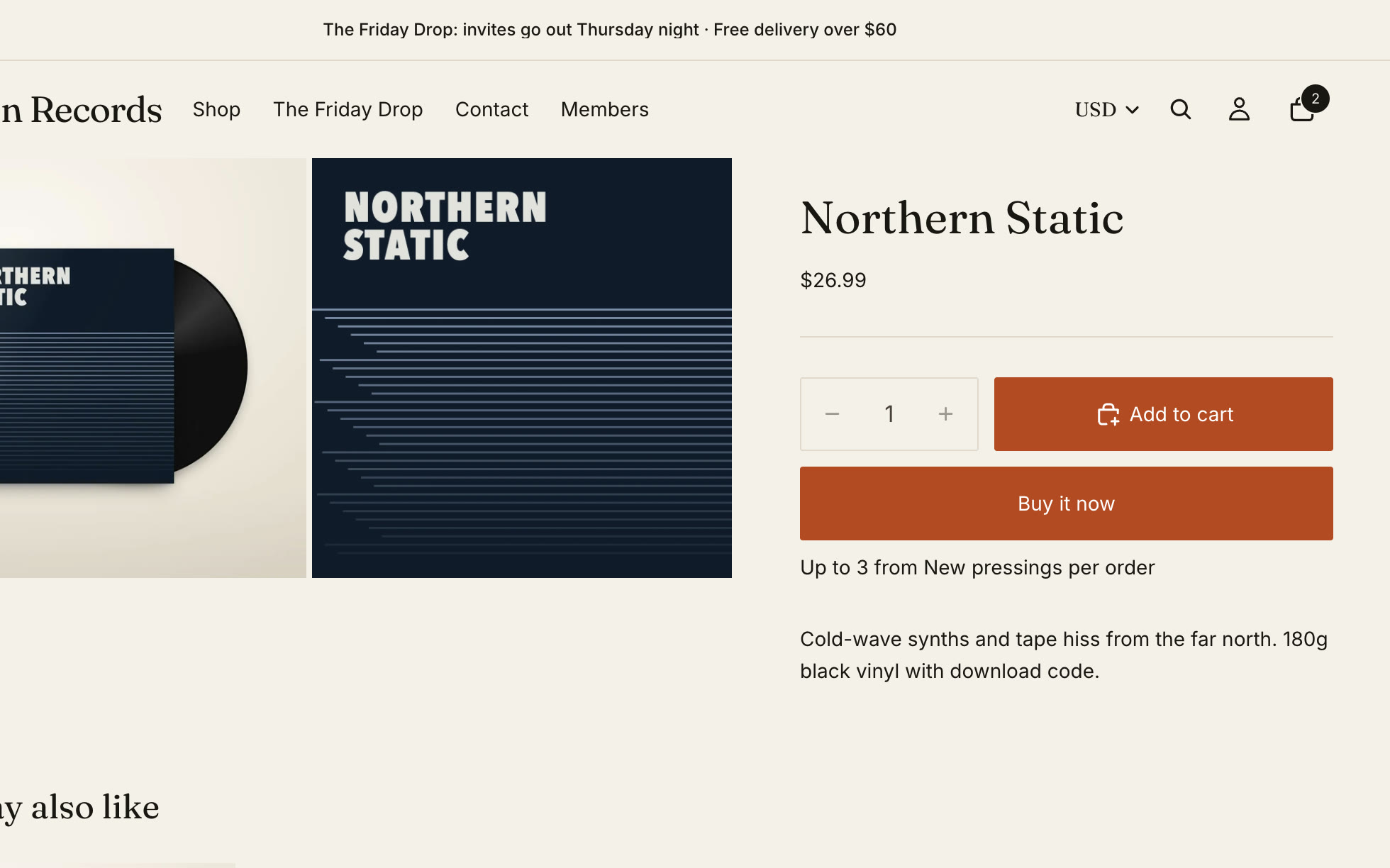
On your store, every product in the collection has a note saying how many from the collection fit in one order.
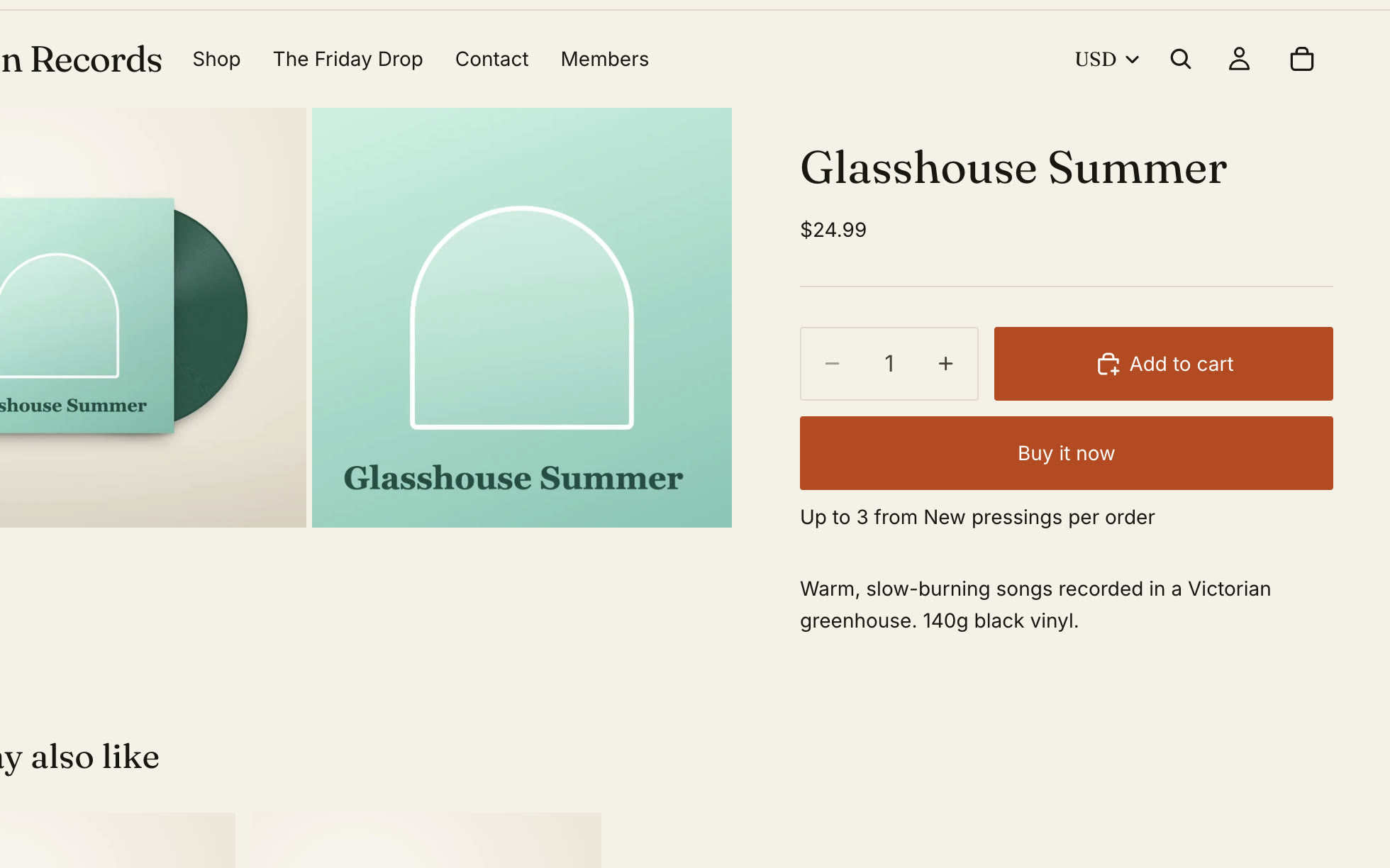
The quantity box counts the cart
The box allows only what still fits. Here the cart already holds 2 from New pressings, so Northern Static's box stops at 1.
When the collection is full
Once the cart holds the limit, the buy button on the collection's products is switched off, and the note says which collection is full.
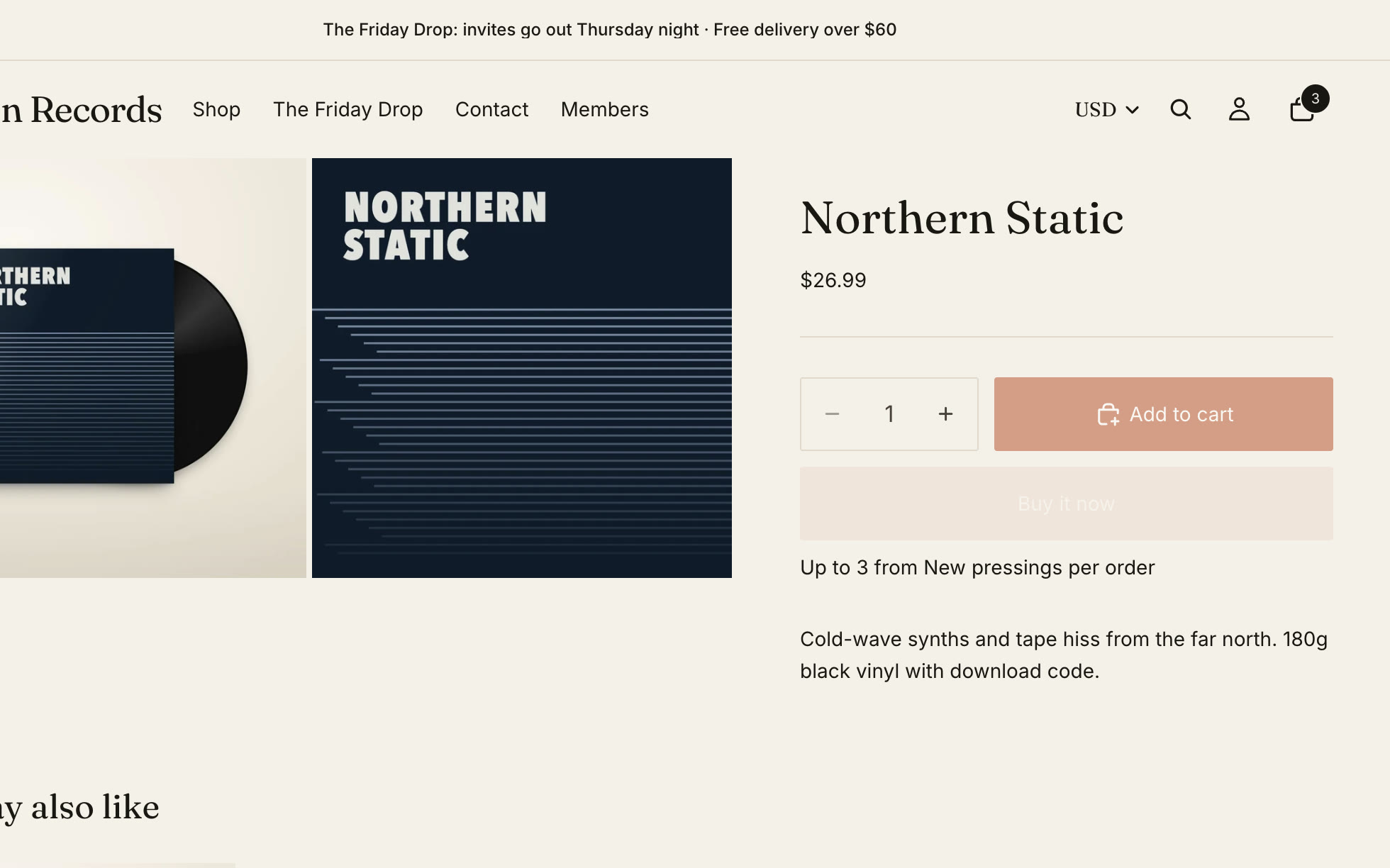
Reword the note in the theme editor: App embeds, StockLock, Collection limit note. {n} is the limit, {collection} its name, {left} how many more fit.
The cart warns
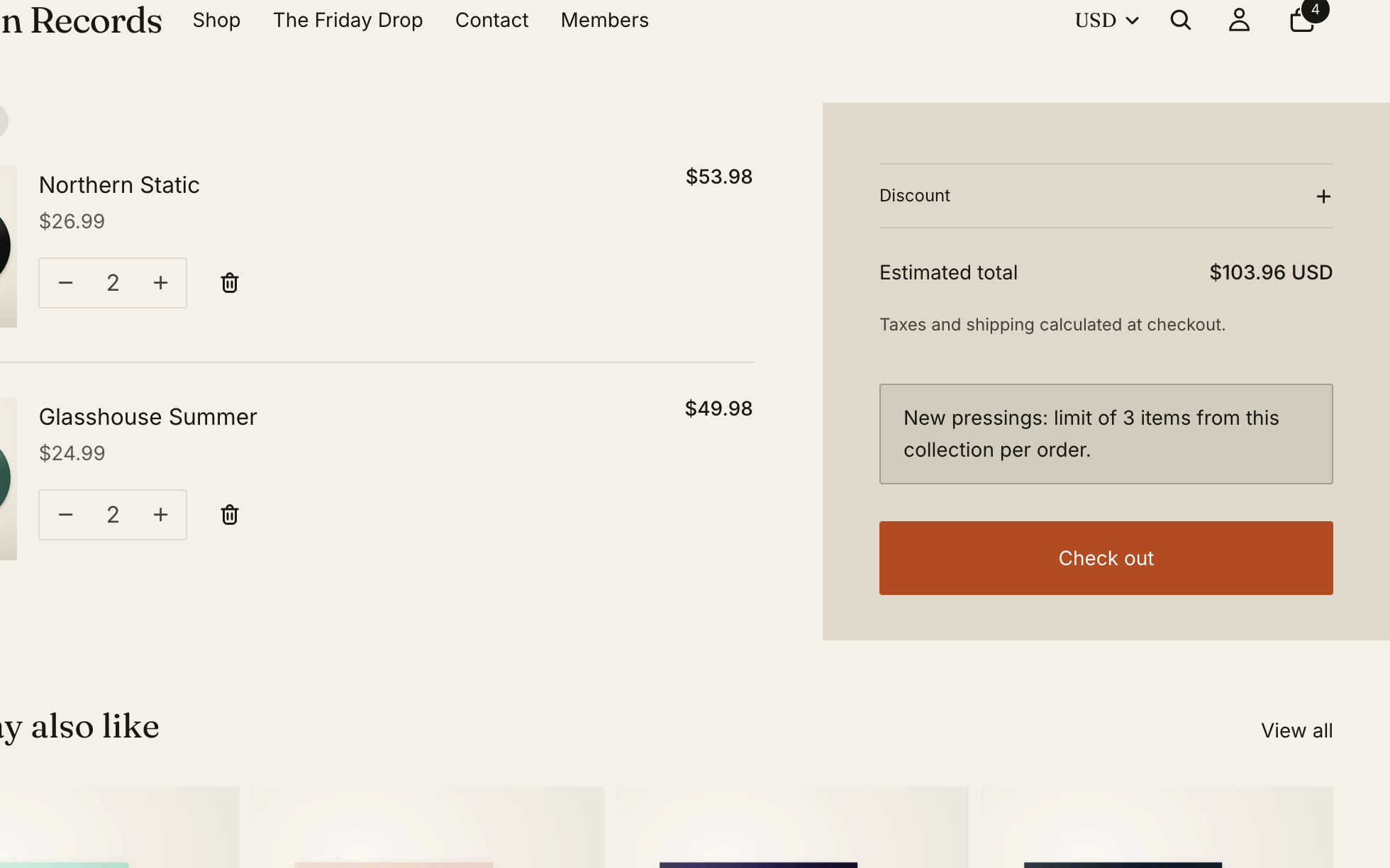
If a cart gets over the limit some other way, such as a quick add button or another app, StockLock says so above the checkout button.
Checkout refuses the order
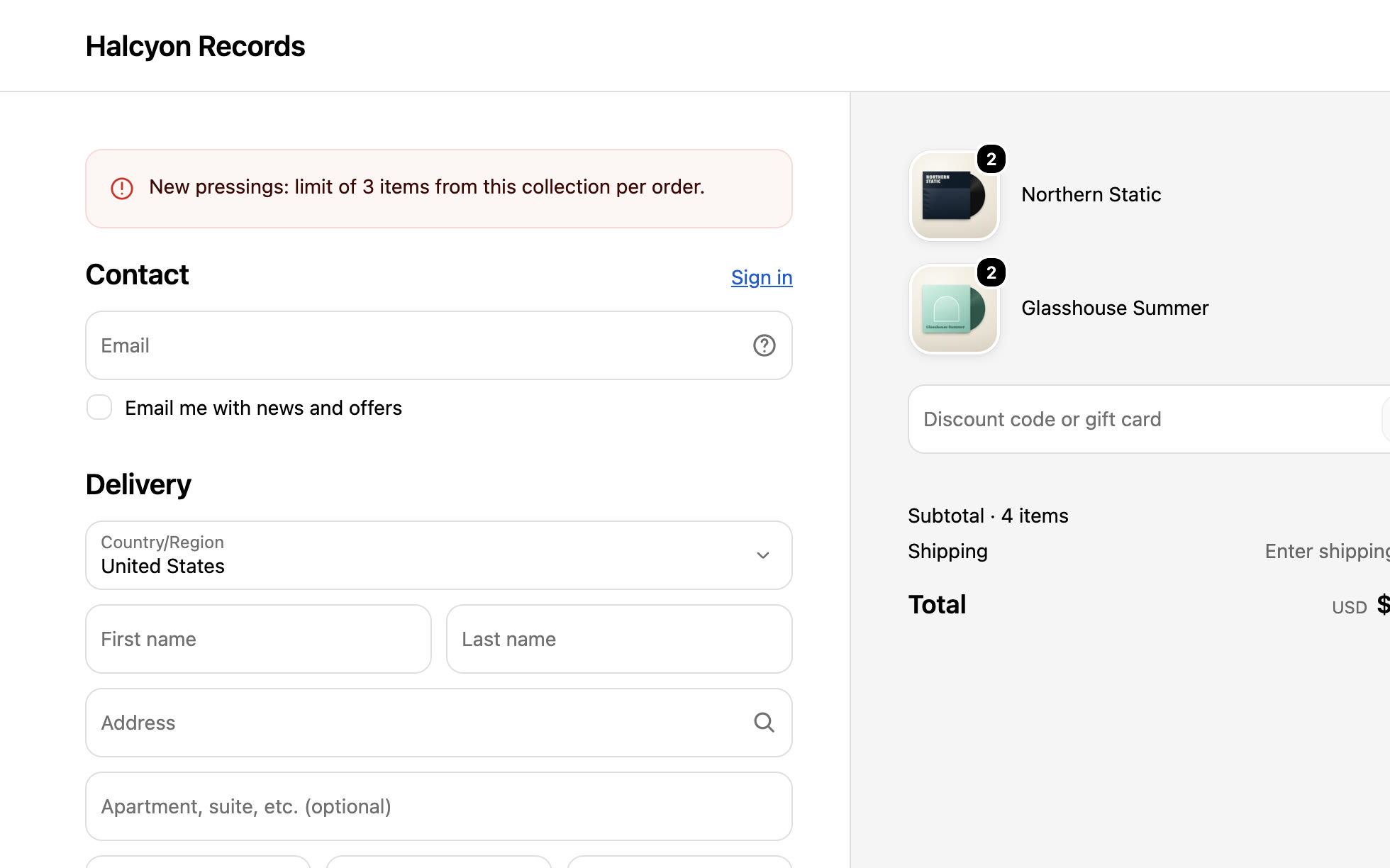
Checkout won't complete until the cart is back within the collection's limit.
All done
That's everything for this guide. Need a hand? Email support@stocklock.net.